
Supplier Credit Note: How to Add in BharatBills
Supplier Credit note is issued when you have to receive to the supplier for any adjustment. In BharatBills you user have a number of options to create a supplier Credit note.
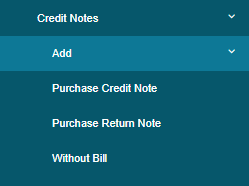
Purchase credit note – If there is any adjustment in the bill then you can select the first option.
Purchase Return Note – If there is any return of the product of your purchase select this option
Without bill – if there is no adjustment in a particular bill there is a general adjustment than you can select the Without Bill option.
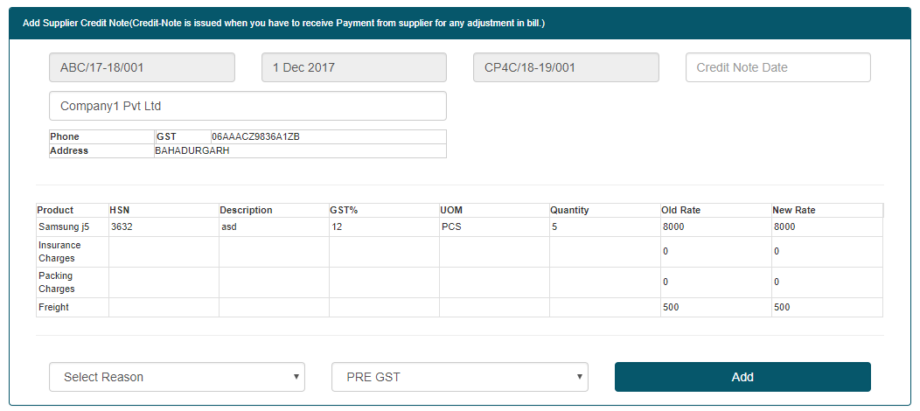
Add Purchase Credit note With Bill
- Click on purchase Credit note
- Search the purchase bill number
- there will be a new window which will contain the details of a purchase invoice
- select the Credit note Date
- change the New Rate for each product
- Select the Reason
Add Purchase credit note Without Bill
- Select the Credit Note Date
- Search the Supplier Name
- Enter The Credit Amount
- Enter the Narration if you want to add

More Useful Link
- How to Add Supplier in BharatBills
- How to Update Payment in BharatBills
- How to Update Supplier in BharatBills
- How to Add Supplier Debit Note in BharatBills
- How to Add Supplier Credit Note in BharatBills
- How to Add Purchase Return in BharatBills
- How to Add Purchase Bill in BharatBills
- How to View//Update/Delete Purchase Bill in BharatBills